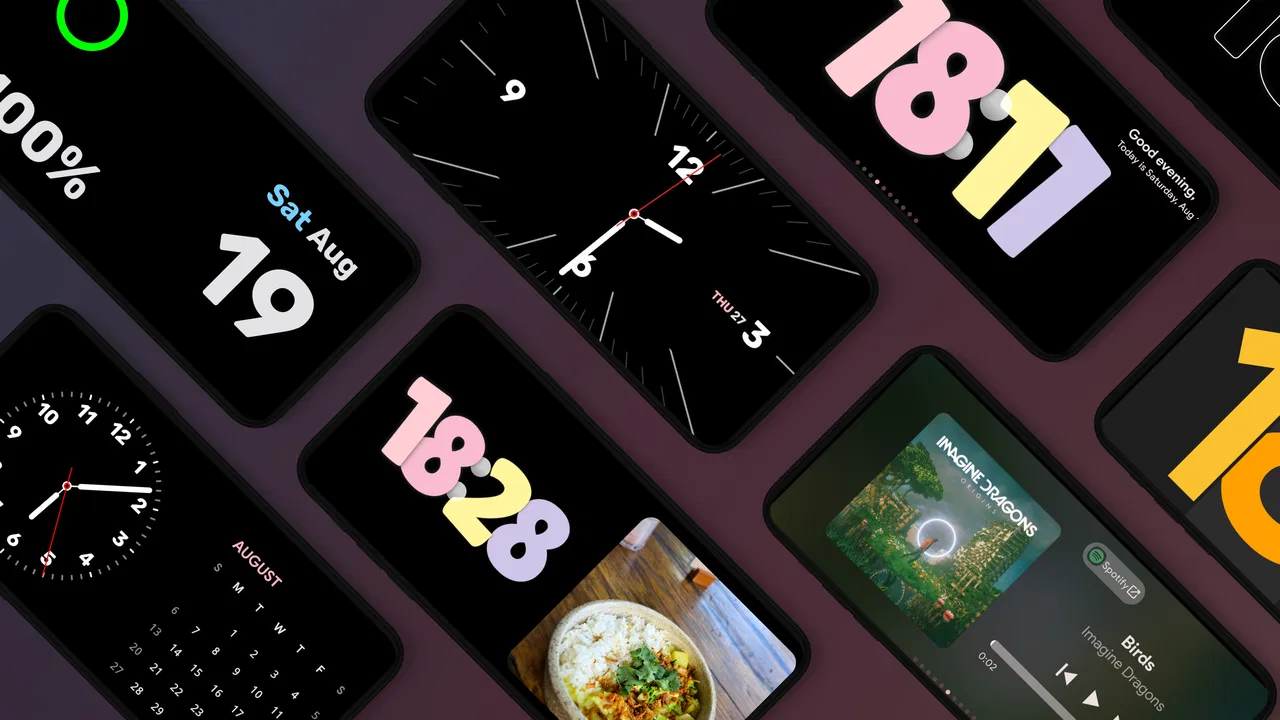
StandBy Mode: Clock & Widgets
- 4.3
- Rating
- 1.00M
- Installs
- Free
- Price

 Analysis by App-foxy
I like apps that give an old phone a useful second life, and StandBy Mode Pro Smart Display takes a simple idea seriously: it turns an Android device into a large desk or bedside clock while keeping the screen useful for focus. I reviewed it as a personalization app from Zetabit Tecnologia, and my overall impression is that it works best when you treat the phone as a dedicated display rather than as your main handset.
The appeal is immediate. Instead of leaving a spare phone in a drawer, you can place it beside your monitor, on a nightstand, or near a study area and use it as a persistent visual reference. The app is free to install, rated for Everyone, and supports Android 7.0 or later. That broad compatibility matters because a device that feels too slow for modern apps may still be perfectly adequate for a clock and focus screen.
The important distinction is that this is not trying to replace a full alarm clock, calendar, or productivity suite. Its value comes from making a phone feel like a purpose-built display. If that matches your routine, it can be pleasantly practical. If you want deep task management, extensive automation, or a completely hands-off bedside appliance, you may find the experience narrower than expected.
You May Also Like

 Blood Strike: 2.5 Anniversary
Blood Strike’s Loadouts Turn Every Drop Into a Tactical Gamble
A close look at Blood Strike’s custom loadouts: how fast access to signature weapons reshapes its battle royale rhythm, rewards preparation, and narrows the gap between fights.

 Pandora - Music & Podcasts
Pandora’s Music Is Easy to Start, but Harder to Recover
Pandora’s strength is its low-effort path from a seed to a station. Its weak spot is how much confidence it asks you to place in connection, setup, and quiet recovery.

 8 Ball Pool
 Is Built on Rivalries, Rematches, and Routine
A close look at the rivalries, rematches, shared routines, and unanswered safety questions that turn a quick pool match into a persistent mobile community.

 Samsung Music
’s Quiet Strength Is Playing What You Already Own
Its reach comes less from spectacle than from dependable access to a personal library. That simplicity is both the app’s strongest retention engine and its ceiling.

 AccuWeather: Weather Radar
AccuWeather Review: A Quick, Clear Forecast for Everyday Decisions
For everyday plans, the best forecast is the one you can understand quickly. AccuWeather makes rain timing, radar, and local conditions easy to act on, with a few trade-offs.

 Hill Climb Racing
Why Hill Climb Racing Still Turns Crashes Into One More Run
A tiny car, a bumpy hill and one more upgrade: Hill Climb Racing keeps resurfacing because its simple chaos makes every near-miss feel personal.
More From Our News Desk



How it feels in everyday use
I find the app’s trust story easiest to judge by separating what I can see while using it from what I would need to verify elsewhere. A clock and focus display can sit in view for hours, so I’d think carefully about the phone’s own lock screen and what it might reveal in a shared space. That practical distinction leads naturally to the controls and choices worth checking before settling on a setup.
Speed expectations: quick enough for a dedicated display
A clock-style interface has a much lighter job than a social feed, game, or video editor. That gives StandBy Mode Pro a natural advantage: you are not asking it to load a complicated workspace every time you glance at it. On a reasonably maintained Android phone, the basic experience should feel direct because the purpose is visual clarity rather than constant interaction.
I would judge its speed by three moments: how quickly the display becomes useful after opening it, whether the clock remains readable without distracting transitions, and how easily the app returns to its intended screen after you briefly use the phone for something else. For a spare device, those moments matter more than benchmark-style performance. A phone that takes a little longer to open an app can still be a good stand-mounted clock if it stays stable once prepared.
The minimum operating-system support also makes the app interesting for older hardware. Android 7.0 is no longer a new platform, so people with retired phones have a realistic chance of using one without buying another screen. Still, compatibility does not magically remove the limitations of aging hardware. A phone with a worn battery, a dim panel, or aggressive background restrictions may need more attention than a newer model.
My practical advice is to open the app before placing the phone in its final position. Set the display the way you want while the device is easy to handle, then check it from the distance where you normally work or sleep. A design that looks comfortable in your hand can feel too bright, too small, or too busy from across a room. This small setup step makes the app feel faster because you spend less time repeatedly adjusting it.
Heavy-use moments: where the phone itself becomes the bottleneck
StandBy Mode Pro is not a demanding game, but a display that stays active can still expose weaknesses in the phone around it. Continuous screen use, charging, heat, and battery health are more relevant here than raw app complexity. If you use a phone as a desk clock for several hours, the physical condition of that phone may determine your experience more than the software does.
A realistic example is a workday beside a laptop. I would place a spare Android phone on a stand, open the app, and use the large clock as a quick glance target while writing or attending online meetings. The benefit is subtle: I do not need to unlock my main phone, which reduces the temptation to check unrelated notifications. During a study session, the same arrangement can act as a visual anchor for a planned focus period, provided the display does not become another source of distraction.
The trade-off appears when that spare phone is also needed for calls, authentication, music, or messaging. Switching away from the display interrupts the dedicated setup, and returning to it may require an extra action. For this reason, I prefer using a device that has already been retired from daily communication. The less often you need to interrupt the display, the more convincing the stand-alone-clock concept becomes.
There is also a sensible heat-management habit: avoid covering the phone with fabric or placing it where air cannot move around it. This is not a special requirement unique to the app; it is simply good practice for any device with an active screen. If the phone becomes uncomfortable to touch, the problem is probably the combined setup of screen, charger, case, and room conditions rather than the clock concept alone.
For a bedside routine, I would be more cautious. A bright phone can work well as a nightstand display if the room and device are arranged comfortably, but it can also be irritating if the screen draws attention when you are trying to sleep. The app is a better fit for people who want a visible time reference than for those who need a completely dark bedroom. A conventional clock may be the better choice when minimal light is the priority.
Reliability: the recovery routine matters
Any app used as a persistent display should be judged by what happens after interruptions. Phones restart, chargers disconnect, battery-saving systems close background activity, and a user may accidentally leave the app. I would not rely on a phone-based clock without testing the exact recovery behavior on the device I planned to use.
The most useful test is simple. Open the app, lock and unlock the phone, rotate it if you expect to change orientation, disconnect and reconnect power, and leave it unused for a while. Then check whether the display returns to the role you intended. This does not require technical knowledge, and it reveals more about suitability than a quick first launch.
Older Android phones can be especially unpredictable because manufacturers may apply their own battery-management rules. If the display disappears after the phone has been idle, look at the phone’s battery settings before blaming the app. A dedicated device with fewer installed apps and fewer background jobs is usually easier to keep consistent than a busy daily phone.
I also recommend keeping a backup plan if the display is important to your routine. For a desk, that may simply mean knowing where the main phone is. For medication timing, travel, or any situation where an accurate alarm is essential, I would use a dedicated alarm clock or another trusted system instead of assuming a personalization app should carry that responsibility.
The app’s popularity gives it a reassuring starting point: it has an average rating of 4.5 from around 28 thousand ratings and has passed one million installs. Those figures suggest that the concept has found a substantial audience, but they do not guarantee identical behavior on every model. Android hardware and manufacturer settings vary too widely for a single experience to apply everywhere.
Device constraints are part of the decision
The best candidate for this app is not necessarily the fastest phone you own. It is often the one with a screen that remains readable, a battery that is still healthy, and a location where it can stay undisturbed. A retired phone with a cracked display, unreliable charging port, or badly degraded battery may create more frustration than value.
Screen size changes the character of the experience. A compact phone can be fine on a nightstand because it sits close to your face, while a larger device is easier to read from a desk or across a room. Before committing, check the viewing angle and reflections in the actual place where you will use it. A glossy screen beside a window may be less useful than a smaller display positioned away from direct light.
Orientation is another practical consideration. Decide whether the phone will stand vertically or horizontally, then arrange the stand and cable around that choice. Repeatedly turning the device can make a simple clock feel fussy. If your case interferes with the stand or charging connection, removing it may help, but that also leaves the phone less protected. The right answer depends on whether the device is permanently installed or moved around.
Power is equally important. A bedside phone that must be recharged every evening is not really acting like a clock. Before buying accessories, test the existing charger and cable in the intended position. A loose connection can cause intermittent interruptions that look like software instability. Keeping the cable secured and avoiding unnecessary movement can make the setup much more dependable.
Privacy is worth considering too. A screen placed in a shared room is visible to anyone nearby, so I would avoid using it as a place to display information you would not want others to see. The app’s central role is a clock and focus display, which is one reason I prefer it in a controlled personal space rather than in a public-facing area.
Focus use: helpful separation, but not a complete productivity system
The focus angle is where the app becomes more than a decorative clock. A visible display can mark the beginning of a work block without requiring you to open a distracting phone. I find that useful when the device is positioned outside arm’s reach: the screen gives me a time reference, while the physical distance discourages casual scrolling.
There is a non-obvious trade-off here. Using your main phone as the focus display may defeat the purpose because messages, calls, and other apps remain one tap away. A spare phone with only the tools you need creates a cleaner boundary. StandBy Mode Pro cannot solve that behavioral problem by itself, but its dedicated-display format makes the boundary easier to build.
For a student, the workflow could be a phone on a stand, a notebook or laptop in front of it, and the display used only for quick time checks. For remote work, it can sit beside the monitor and reduce the need to glance at a wristwatch or unlock a handset. For cooking or exercise, the large time reference may be more convenient than keeping a phone in your hand, although the suitability depends on where the device can safely sit.
I would not describe it as a replacement for a structured planner. If your priority is assigning tasks, tracking habits, managing appointments, or syncing detailed schedules, a calendar or task app is a better tool. This app’s strength is environmental: it changes how a device occupies your space, rather than organizing every part of your day.
What the free model means in practice
The app is free, which makes experimenting with an unused phone relatively low-risk. There are in-app purchases ranging from $0.99 to $54.99 per item, so I would explore the free experience first and decide whether any optional upgrade is genuinely useful for your setup. The large possible range means it is especially important not to assume that every customization or advanced option is included at no cost.
I prefer this approach with personalization apps: install it, use the basic display through a normal work session, and only then consider spending money. If the clock already solves your problem, there is no reason to buy anything simply because the app offers purchases. If you want a more tailored presentation, evaluate whether the change improves readability and routine rather than merely adding visual novelty.
The current version is 1.8.13.483, and the app was released on June 6, 2023. Those details are useful when checking compatibility or discussing the app with someone who has a different Android phone, but they should not be treated as a promise that every device will behave identically. Updates and manufacturer software can affect the feel of an otherwise simple display.
Who should use it, and who should skip it?
I would recommend StandBy Mode Pro Smart Display to someone with an unused Android phone who wants a clear desk clock, a bedside time reference, or a low-distraction focus companion. It is also a sensible option for people who enjoy repurposing hardware instead of buying another dedicated gadget. The Everyone content rating makes it approachable for a broad household audience, although individual comfort with a lit screen still matters.
I would be less enthusiastic for someone who wants a phone to function as a completely maintenance-free appliance. You still need to think about charging, placement, brightness, accidental interruptions, and the behavior of the host device. It is also not my first choice for people who need a guaranteed alarm, a dark bedroom, or detailed productivity features. In those cases, a traditional alarm clock, a dimmer display solution, or a dedicated planning app may fit better.
Another group that may want to skip it is anyone planning to use their only phone. The arrangement is possible, but it is inconvenient if you frequently need to leave the clock view. The app makes the most sense when the device can remain in place and serve one clear purpose. That is the central trade-off: reuse and visibility in exchange for dedicating hardware and power to the display.
My performance verdict
StandBy Mode Pro Smart Display succeeds because it does not need a powerful phone to feel useful. Its perceived speed comes from a focused job, and its most convincing use cases involve a spare Android device that can stay on a stand. When the hardware is healthy and the setup is sensible, the app can turn forgotten equipment into a practical visual tool for work, study, or a bedside routine.
Its limitations are equally clear. Long display sessions make battery condition, heat, charging, and screen comfort important. Reliability depends partly on Android’s own power-management behavior. The app also cannot replace the specialized strengths of an alarm clock, a calendar, or a full focus-planning system. Those are not deal-breakers; they simply define the product honestly.
After weighing those points, I see it as a worthwhile free experiment for anyone with a compatible spare phone. Install it, test it in the exact place where it will live, interrupt it a few times, and judge the result by whether it reduces friction in your routine. If it gives you a readable clock and a calmer focus environment without demanding constant attention, it has earned its place. If the phone overheats, the display is uncomfortable, or you need dependable alarm-clock behavior, choose a purpose-built alternative instead.
FAQs for StandBy Mode: Clock & Widgets
01What is StandBy Mode Pro Smart Display?
StandBy Mode Pro Smart Display is a versatile app designed to enhance your device's standby screen functionality. It offers customizable options for displaying time, notifications, weather updates, and more when your phone is idle. This app aims to transform your standby screen into a smart display, providing useful information at a glance.
02Is StandBy Mode Pro Smart Display compatible with my device?
The app is compatible with both Android and iOS devices. However, it's important to ensure your device meets the minimum operating system requirements. For Android, it typically requires version 8.0 or higher, while iOS devices should be running iOS 11 or later. Compatibility may vary, so check the app store for specific details.
03What are the key features of StandBy Mode Pro Smart Display?
StandBy Mode Pro Smart Display offers a range of features including customizable clock styles, notification previews, weather updates, and quick access to essential apps. Users can personalize the display settings to show relevant information without unlocking their device, enhancing both convenience and efficiency in daily use.
04Does StandBy Mode Pro Smart Display impact battery life?
While StandBy Mode Pro Smart Display is designed to be power-efficient, it does use some battery resources to keep the display active. However, the app offers settings to optimize battery usage, such as adjusting brightness and selecting specific times for the display to be active, helping to minimize battery drain.
05Is there a cost associated with StandBy Mode Pro Smart Display?
The app offers both free and premium versions. The free version includes basic functionalities, while the premium version unlocks advanced features like additional customization options and ad-free experience. Users can choose to purchase the premium version through in-app purchases to enhance their experience.
Pros
- Customizable display settings
- Energy-saving features included
- Seamless integration with devices
- User-friendly interface design
- Frequent updates for improvements
Cons
- Limited widget options available
- Compatibility issues on older devices
- Occasional lag in performance
- Requires stable internet connection
- Ads in free version can be intrusive

StandBy Mode: Clock & Widgets
Gallery